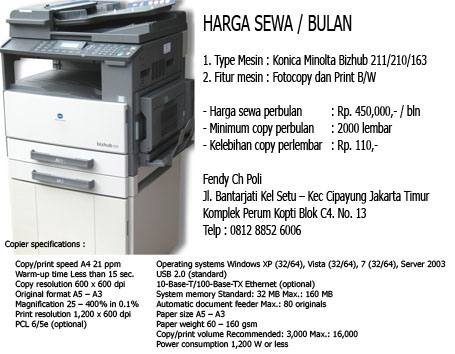
Harga Sewa Fotocopy Murah

Harga Sewa Fotocopy Murah
Promo Sewa Fotocopy
Showing posts with label photocopy canon. Show all posts

Cara Download System Software iR6570

By photocopy canon | At Sunday, September 15, 2019 | Label : , , , | 0 Comments
The system software comes in 2 types (one for use inside Japan and the other, outside Japan).
Unlike previous iR controllers, however, there is only one type of system software. (Previously, one type supported
NetWare while the other did not. There is now only one type for the machine supporting NetWare.)

Downloading Procedure System Software iR6570 / iR5570

You can run a downloading session either in normal or safe mode.

1) Select the version of the system you want to download.

2) Click [Start].

3) When the session has ended, click [OK].

4) If you want to start another downloading session, see the appropriate instructions.
5) When you are done with downloading, turn off and then on the main power.
6) See the upgrade status indicated on the control panel. When a message appears asking you to turn off and then on
the switch, turn off and then on the main power.

Be sure never to turn off the power while the machine is executing a downloading session or writing downloaded
software. The ongoing session will be suspended and the machine may fail to start up.


If the machine fails to start up, format BOOTDEV using HDFormat, and then download system software to be stored  in the HDD such as System, Language, and RUI.


Demikian Cara  Download System Software iR6570, maaf belum di terjemahkan ya

Cara Download Network Scan Gear Tool v2.30 untuk Windows 7 (64bit)

By photocopy canon | At Wednesday, May 15, 2013 | Label : , , , , , | 0 Comments
Berikut panduan Cara Download Network Scan Gear Tool v2.30 untuk Windows 7 (64bit), Windows XP, Vista, Server 2003, Server 2008 untuk anda.

Sumber : http://photocopycanon.blogspot.com/


Network Scan Gear Tool
System Operasi:
  • Windows 7 (x64)
  • Windows Vista (x64)
  • Windows XP (x64)
  • Windows Server 2003 (x64)
  • Windows Server 2008 (x64)
  • Windows Server 2008 R2 (x64)

Terakhir Diperbarui: 24 Jan 2012
Nomor Issue: 01003 12802
Source Url : http://photocopycanon.blogspot.com/

Perincian
* Perhatian Ketika Menggunakan Koneksi USB Cabut kabel USB yang menghubungkan perangkat dgn komputer sebelum menginstal driver.
Setelah menginstal driver sambungkan kembali kabel USB dan Siapkan Driver dan file software aplikasinya.
Berikut petunjuk Cara download software ScanGear v2.30 dan cara meng-extract file yang dikompresi.
  1. Untuk men-download file, klik link file, pilih [Save], dan tentukan direktori di mana Anda ingin menyimpan file tersebut. Download akan dimulai secara otomatis.
  2. File download akan disimpan dalam folder tertentu dalam format self-extracting (format exe.).
  3. Klik dua kali file untuk dekompresi mereka. Sebuah folder baru akan dibuat dalam folder yang sama. Folder baru akan memiliki nama yang sama dengan file terkompresi.
  4. Klik dua kali Setup.exe file didekompresi untuk memulai instalasi.
Perhatian
TWAIN Driver Scan ini adalah untuk driver 32bit yang hanya dapat digunakan dengan aplikasi 32bit-kompatibel berjalan pada OS 64bit.

Informasi File
  • File name : Network Scan Gear
  • File version : 2.30
  • File language : English
  • File size : 17,835KB
Demikian Cara Download Network Scan Gear Tool v2.30 untuk Windows 7 (64bit), Windows XP, Vista, Server 2003, Server 2008.

Setting ukuran kertas bypass canon np

By photocopy canon | At Wednesday, April 17, 2013 | Label : , , | 8 Comments
multifeeder canon np6230 Cara “Setting ukuran kertas bypass canon np” ini saya bahas di karenakan ada komentar yang bertanya bagaimana cara mengatasi kertas bypass NP6230 hasilnya terpotong bagian tepinya sekitar 2 cm.
Biasanya hasil kopian lewat bypass terpotong kemungkinan sensor kertas di bypass / kertas manual sudah rusak atau kemungkinan setting program yang berubah, untuk itu sebelum sensor kita ganti dengan yang baru ada baiknya kita coba terlebih dahulu lewat program seting kertasnya agar bisa mengembalikan “setting ukuran kertas bypass canon np” yang hasilnya copyannya terpotong.
Bypass NP6230
Berikut ini cara “Setting ukuran kertas bypass canon np” hasilnya terpotong.
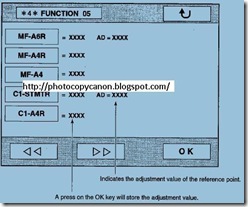
  • Pertama buka service mode *4* >> FUNCTION >> MF-A6R setelah dipilih sekarang geser penjepit kertas di bypass atau tray multifeeder ke posisi A6R kemudian tekan OK.
  • Kedua pilih lagi MF-A4R kemudian geser lagi penjepit kertas ke posisi A4R setelah itu tekan OK lagi.
  • Ketiga pilih lagi MF-A4 kemudian geser lagi penjepit kertas ke posisi A4 setelah itu tekan OK.
  • Keempat tekan RESET di control panel kemudian matikan dan hidupkan kembali fotokopinya.
  • Kelima saatnya untuk mencoba apakah berhasil atau tidak dengan mengkopi selembar dan lihat hasilnya.
  • Keenam apabilah percobaan cara “Setting ukuran kertas bypass canon np”  diatas tidak berhasil berarti sudah waktunya anda mengganti sensornya dengan yang baru.
Demikian tips “cara mengatasi kertas bypass NP6230 hasilnya terpotong” moga bermanfaat

Technorati Tags: ,,,,,,,,,,,,,
,,,,,,,,,,,,,
,,,,,,,,,,,,,,

Proses Kerja Mesin Fotocopy

By photocopy canon | At Saturday, February 23, 2013 | Label : , , , | 0 Comments

Proses Kerja Mesin Fotocopy


Proses Kerja Mesin Fotocopy pada prinsipnya karena adanya dua faktor penting yaitu:
1. Muatan listrik Positif, dan
2. Muatan listrik negatif
Dimana daya tarik kedua bahan bermuatan listrik itu saling berlawanan. Beberapa bahan akan menjadi pengahantar listrik (konduktor) yang lebih baik ketika terkena cahaya."

Proses Kerja Mesin Fotocopy yang oleh sang Penemu Mesin Fotokopi (fotocopy) Chester F. Carison, dalam percobaannya mengikuti beberapa proses sederhana ini:
Permukaan foto konduksi diberikan penimbunan listrik positif. 
Permukaan foto konduksi tersebut kemudian dibiarkan menyentuh gambar dari dolumen. 
Penimbunan listrik dihamburkan pada bagian yang bersentuhan tersebut. 
Serbuk yang bermuatan negatif yang dihamburkan akan menempel pada bagian yang bermuatan positif dikarenakan daya tarik menarik elektrostatis. 
Selembar kertas diletakkan pada gambar yang terbentuk oleh serbuk dan diberikan muatan positif. 
Serbuk yang bermuatan negatif akan tertarik oleh lembaran kertas bermuatan positif dan terlepas dari foto konduktor. 
Pemanas meleburkan gambar yang terbentuk oleh serbuk itu dan menyatu dengan lembaran kertas, yang kemudian menghasilkan duplikasi (copy) dari gambar aslinya.
Mayoritas mesin foto copy saat ini menerapkan proses kerja seperti tersebut diatas. Sehingga pada semua mesin memiliki bagian-bagian yang disebut:

Charging; Sebuah tabung silinder (drum) yang diberi muatan listrik kawat yang bermuatan listrik tinggi yang disebut corona wire atau charge roller. Tabung silinder dilapisi dengan bahan yang bersifat foto konduksi. Sebuah foto konduktor merupakan semi konduktor akan menjadi konduktif ketika terkena cahaya.
Exposure; Sebuah tabung lampu yang menyala terang menyinari dokumen asli dan bagian / area yang berwarna putih akan memantulkan cahaya ke permukaan tabung silinder (drum). Bagian yang terkena pantulan cahaya akan menjadi konduktif bermuatan positif dan sebaliknya yang tidak terkena pantulan akan tetap bermuatan negatif. Hasilnya dari pencahayaan ini akan terbentuk pada permukaan drum.
Developing; Bagian yang berisikan toner (serbuk) yang bermuatan positif. Ketika bersentuhan dengan drum dan menghasilkan gambar, toner (serbuk) akan tertarik dan menempel pada bagian drum yang bermuatan negatif (area berwarna hitam = tulisan/ gambar pada dokumen asli).
Transfer; Hasil dari gambar yang terbentuk dari toner (serbuk) pada permukaan drum, dipindahkan ke permukaan lembaran kertas dengan bantuan muatan listrik negatif yang lebih tinggi dari muatan listrik negatif pada drum.
Fusing; Proses peleburan toner (serbuk) dan menyatu pada lembaran kertas dengan bantuan gulungan (roller) yang memberikan tekanan.

Proses Kerja Mesin Fotocopy dimana keterangan bagian-bagian diatas adalah proses kerja yang diterapkan pada Mesin Fotocopy Digital. Sedangkan pada kebanyakan mesin foto copy Analog menerapkan muatan listrik positif pada drum dan muatan listrik negatif pada toner (serbuk).
sumber : http://iniunic.blogspot.com/2013/02/prinsip-kerja-mesin-fotocopy

Firmware Canon Image RUNNER

By photocopy canon | At Thursday, February 14, 2013 | Label : , , , , , , , , | 3 Comments

imageRUNNER

Berikut ini Photocopy Canon akan memberikan tabel Firmware Canon Image RUNNER


Semoga  Firmware Canon Image RUNNER ini dapat menjadi patokan untuk Install ulang Software Canon imageRUNNER anda, dan seperti biasanya jika anda merasa bermanfaat jangan lupa klik tombol SUKA diatas.

Kode Error Fuji Xerox

By photocopy canon | At Tuesday, February 12, 2013 | Label : , , | 3 Comments
Berikut ini saya bagikan Daftar Kode Error Fuji Xerox lengkap, sebagai panduan anda mencari kode kerusakan yang sering terjadi.

Demikian Kode Error Fuji Xerox ini saya bagikan ke anda mudah-mudahan bermanfaat.

Cara Masuk Servis Mode Ricoh Aficio MP C2030

By photocopy canon | At Tuesday, February 12, 2013 | Label : , , , , | 0 Comments

Ricoh Aficio MP C2030 / MP C2530
Berikut ini saya bagikan tips Cara Masuk Servis Mode Ricoh Aficio MP C2030 Mesin Fotocopy Warna ini:

  1. Tekan tombol C (clear) warna kuning
  2. Masukan key 107
  3. Kemudian tahan tombol Stop warna merah selama 5 detik, ini akan membawa Anda ke dalam modus standard service mode MPC2030.

Demikian tips 'Cara Masuk Servis Mode Ricoh Aficio MP C2030' ini mudah-mudahan bisa bermanfaat bagi pemula Teknisi Fotocopy 'Ricoh Aficio' ini.

Baca Juga: Kode Error Mesin Fotocopy Ricoh

Parts Catalog iR5075 iR5065 iR5055

By photocopy canon | At Monday, January 21, 2013 | Label : , , , , , | 0 Comments

Fotocopy Canon 

iR5075N iR5075 iR5065N iR5065 iR5055N  iR5055

Parts Catalog


Tags: Mesin Fotocopy Canon Ir5055 Ir5065 Ir5055n Ir5075 Ir5075n Ir5065n Parts Catalog


Baca Juga :

Service Manual iR5075 / iR5065 / iR5055

By photocopy canon | At Sunday, January 20, 2013 | Label : , , , , | 0 Comments

TITLE Service Manual iR5075 / iR5065 / iR5055
PAGE 650 Halaman
CATEGORY Mesin Fotocopy Canon iR
FILE PDF
SOURCE www.scribd.com
DOWNLOAD http://www.scribd.com/


Enhanced by Zemanta

Cara Memperbaiki Hardisk Canon IR Rusak

By photocopy canon | At Wednesday, January 02, 2013 | Label : , , , , | 0 Comments
Sebelum anda mengganti HDD Mesin Fotocopy Imagerunner anda ada baiknya untuk mencoba Tips Cara Memperbaiki Hardisk Canon IR Rusak karena Error E602 ini.

Tips Cara Memperbaiki Hardisk Canon IR Rusak karena Error E602 seperti yang anda lihat pada Video dibawah ini saya share karena dengan melihat langsung pasti akan lebih gampang anda ikutin daripada sekedar membaca tulisan saja.

Oke kita langsung saja tonton video yang diberi Title : How To Repair Laptop Hardisk.


Kenapa Hardisk Laptop? karena fisik HDD 2,5” ini sama dengan Hardisk yang dipake di Mesin Fotocopy Canon IR

Gimana… gampang bukan! Semoga dengan video Tips Cara Memperbaiki Hardisk Canon IR Rusak karena Error E602 ini muda-mudahan bisa bermanfaat untuk anda.

Baca Juga :

[21] Parts Catalog iR5075 iR5065 iR5055
[20] Service Manual iR5075 / iR5065 / iR5055
[01] Download Driver Printer iR4570 untuk Linux
[31] Print Pdf Documents On A Canon Imagerunner
[31] Delete An Email Address From A Canon Imagerunner Copier
[31] Canon Imagerunner 330
[16] Cara Download Driver & Software Canon IR 5050
[07] Kode Error Canon IR2200/IR2800/IR3300
[20] Cara Download Software System iR6570 / iR5570
[20] Tips agar karyawan Fotocopy Anda betah
[20] Tips Usaha Copy Center
[19] 8 Point penting service berkala Fotocopy Canon Ir 4570
[17] Cara Ganti Drum NP6030 dengan benar
[15] Kode Error Mesin Fotocopy Ricoh
[04] Instalasi Fax Canon imageRUNNER dan Cara Mengirim Fax dari PC Komputer
[02] Cara Menyimpan data di Mesin Fotocopy ke Flashdisk
[02] Cara Fotocopy Dari USB Drive Flashdisk
[26] Cara setting mailbox canon iR
[07] Canon image CLASS MF4450 murah
[05] Buku Service Manual Canon NP 6050
[03] Download Software Image Viewer Canon iR5000
[11] Cara Jilid Hard Cover
[09] Download Service Manual iR5000/iR6000
[14] Canon Driver Configuration Tool (CDCT)
[05] Cara Install Printer Mesin Fotocopy di Windows 7
[03] Cara Setting ulang ADF Feeder Fotocopy iR
[29] Harga Sewa Mesin Fotocopy Canon IR 3030
[28] Cara Menghubungkan Mesin Fotocopy Canon Dengan Komputer
[24] Sewa Fotocopy Canon NP 6050
[17] Fotocopy Canon IR 5050
[24] Network ScanGear Canon imageRUNNER iR6570 for Win 7
[15] Cara mengakses hasil Scan Canon IR5000
[07] CARA SCAN DOKUMEN MEMAKAI CANON iR5000
[01] Lupa Password ID Canon IR 5000
[11] Fotocopy Canon IR 6570
[21] Error E020-0000 Canon ir4570
[15] Membuat Drum Fotocopy Bekas menjadi Baru
[24] IR6570/5570 Hasilnya Pucat
[15] Mesin Fotocopy dan cara kerja Canon IR
[25] How To Cleaning the Photosensitive Drum Canon IR 5000 iR6000
[18] CARA INSTAL DRIVER FOTOKOPI CANON IMAGE RUNNER | CANON IR
[16] Driver Canon IR Supported Product
[12] Error Solution Canon Ir4570
[12] Service Mode Canon NP
[03] How to Setting Up Your PC to Print Using Using Canon IR5000
[30] Photocopy Canon Digital Image Processing
[26] Download Driver Canon iR3300 Windows 7
[26] Fix the lift gear cassette ir3300
[26] Photocopying Process Video
[24] How to Maintenance a Photocopier Machine
[21] Merubah Scanner dan Printer Menjadi Mesin Fotokopi
[16] Download Canon NP6030 | NP6230 | NP6035 | 6028 free service manual
[14] Cara Setting atau Check IP Address Canon imageRunner
[10] Error Code iR3300 iR2800 iR2200
[07] Kode Error Ir4570
[21] Canon iR6000 Brosur Fotokopi
[21] Driver Photocopier Canon iR6000
[28] Error E100 Canon iR | Cara Mengatasi Eror E100 iR1600
[25] Incorrect Paper Size and Stop Printing Canon Ir1600 | Ir2000
[24] Kode Error Canon NP6030|6035 - E001,002,003,004
[07] Error Code in Canon iR5000/iR6000
[17] KODE EROR FOTOCOPY CANON NP-IR-GP-FC
[17] KODE ERROR FOTO COPY CANON NP | IR
[09] Foto Copy
[14] Harga Canon NP 6035
[04] Canon NP 6035
[03] Canon NP 6030

Download Driver Printer iR4570 untuk Linux

By photocopy canon | At Tuesday, January 01, 2013 | Label : , , , , , , | 0 Comments
Download Driver Printer iR4570 untuk Linux Ubuntu Hardy 8.04, serta linux lainnya

http://www.openprinting.org/printer/Canon/Canon-imageRunner_4570 and then use this guide to install your printer

Atau baca penjelasannya diforum ini : http://ubuntuforums.org/showthread.php?t=851192

Kalau masih kurang penjelasannya coba link dibawah ini :


Download Canon imageRUNNER iR4570 Linux Printer Driver 

Download Canon imageRUNNER iR4570 Linux Printer Driver

Notice on Linux Driver
This Driver requires installation of Ghostscript including common API. Before installing this driver, make sure that Ghostscript including common API is installed. Acquiring method of Ghostscript including common API varies in accordance with the kind of distribution.
See the URL below:
http://opfc.sourceforge.jp/index.html.en

Baca Juga :

[21] Parts Catalog iR5075 iR5065 iR5055
[20] Service Manual iR5075 / iR5065 / iR5055
[01] Cara memperbaiki hardisk canon ir rusak
[31] Print Pdf Documents On A Canon Imagerunner
[31] Delete An Email Address From A Canon Imagerunner Copier
[31] Canon Imagerunner 330
[16] Cara Download Driver & Software Canon IR 5050
[07] Kode Error Canon IR2200/IR2800/IR3300
[20] Cara Download Software System iR6570 / iR5570
[20] Tips agar karyawan Fotocopy Anda betah
[20] Tips Usaha Copy Center
[19] 8 Point penting service berkala Fotocopy Canon Ir 4570
[17] Cara Ganti Drum NP6030 dengan benar
[15] Kode Error Mesin Fotocopy Ricoh
[04] Instalasi Fax Canon imageRUNNER dan Cara Mengirim Fax dari PC Komputer
[02] Cara Menyimpan data di Mesin Fotocopy ke Flashdisk
[02] Cara Fotocopy Dari USB Drive Flashdisk
[26] Cara setting mailbox canon iR
[07] Canon image CLASS MF4450 murah
[05] Buku Service Manual Canon NP 6050
[03] Download Software Image Viewer Canon iR5000
[11] Cara Jilid Hard Cover
[09] Download Service Manual iR5000/iR6000
[14] Canon Driver Configuration Tool (CDCT)
[05] Cara Install Printer Mesin Fotocopy di Windows 7
[03] Cara Setting ulang ADF Feeder Fotocopy iR
[29] Harga Sewa Mesin Fotocopy Canon IR 3030
[28] Cara Menghubungkan Mesin Fotocopy Canon Dengan Komputer
[24] Sewa Fotocopy Canon NP 6050
[17] Fotocopy Canon IR 5050
[24] Network ScanGear Canon imageRUNNER iR6570 for Win 7
[15] Cara mengakses hasil Scan Canon IR5000
[07] CARA SCAN DOKUMEN MEMAKAI CANON iR5000
[01] Lupa Password ID Canon IR 5000
[11] Fotocopy Canon IR 6570
[21] Error E020-0000 Canon ir4570
[15] Membuat Drum Fotocopy Bekas menjadi Baru
[24] IR6570/5570 Hasilnya Pucat
[15] Mesin Fotocopy dan cara kerja Canon IR
[25] How To Cleaning the Photosensitive Drum Canon IR 5000 iR6000
[18] CARA INSTAL DRIVER FOTOKOPI CANON IMAGE RUNNER | CANON IR
[16] Driver Canon IR Supported Product
[12] Error Solution Canon Ir4570
[12] Service Mode Canon NP
[03] How to Setting Up Your PC to Print Using Using Canon IR5000
[30] Photocopy Canon Digital Image Processing
[26] Download Driver Canon iR3300 Windows 7
[26] Fix the lift gear cassette ir3300
[26] Photocopying Process Video
[24] How to Maintenance a Photocopier Machine
[21] Merubah Scanner dan Printer Menjadi Mesin Fotokopi
[16] Download Canon NP6030 | NP6230 | NP6035 | 6028 free service manual
[14] Cara Setting atau Check IP Address Canon imageRunner
[10] Error Code iR3300 iR2800 iR2200
[07] Kode Error Ir4570
[21] Canon iR6000 Brosur Fotokopi
[21] Driver Photocopier Canon iR6000
[28] Error E100 Canon iR | Cara Mengatasi Eror E100 iR1600
[25] Incorrect Paper Size and Stop Printing Canon Ir1600 | Ir2000
[24] Kode Error Canon NP6030|6035 - E001,002,003,004
[07] Error Code in Canon iR5000/iR6000
[17] KODE EROR FOTOCOPY CANON NP-IR-GP-FC
[17] KODE ERROR FOTO COPY CANON NP | IR
[09] Foto Copy
[14] Harga Canon NP 6035
[04] Canon NP 6035
[03] Canon NP 6030

Print Pdf Documents On A Canon Imagerunner

By photocopy canon | At Monday, December 31, 2012 | Label : , , , , | 0 Comments
Canon ImageRunners come in speeds ranging from 15 pages per minute up to 105 pages per minute. These digital, multifunctional copiers can be configured as a stand-alone copier, network printer, network fax machine and scanner.

For printing, there are two different print boards that can be installed into the imageRunner. One is a PCL printer that is mainly used for Windows printing.

The other is a Postscript print board that is used to print Postscript files. Either one can be used to print PDFs to the ImageRunner.

Link Sumber :
http://canonnetworkcard.danielcadams.com/how-to-print-pdf-documents-on-a-canon-imagerunner/

Baca Juga :


Delete An Email Address From A Canon Imagerunner Copier

By photocopy canon | At Monday, December 31, 2012 | Label : , , | 0 Comments
The Canon Imagerunner copier has the capability to scan and email documents to email addresses that you load into the copier. Once you have configured your Canon copier, you may on occasion need to delete an email address from those loaded on the machine.
  1. Turn on the Imagerunner Copier by pushing the power button. Wait until it has fully turned on before proceeding.
Baca dari sumber aslinya :
http://canonnetworkcard.danielcadams.com/how-to-delete-an-email-address-from-a-canon-imagerunner-copier/

Canon Imagerunner 330

By photocopy canon | At Monday, December 31, 2012 | Label : , , , , | 0 Comments
The Canon ImageRunner 330 uses laser technology to copy at a speed of up to 33 pages per minute. It has a first page out time of 6 seconds through the automatic document feeder and is capable of handling up to 120,000 copies monthly. With a resolution of up to 1200 x 600, high quality copies are the norm. It also features standard two-sided copying, and has the ability to do 1 to 999 copies at a time.

The IR330 also has the ability to add powerful functions to the machine to handle other common office tasks. It has the ability to perform network printing with the addition of three separate printer boards. The H1 board allows network printing for both PCL or PS3 environments. The K1 printer board is used mainly for PCL printing and finally the TR4 board allows network printing via token ring networks.
The copier also has two options to add fax capability to the device. The F1 Super G3 fax board adds the ability to fax through the use JBIG compression at a respectable 33.6 kilobytes per second. The A1 Dual Line fax board adds the same features as the F1 but offers an additional fax line.
Finally the copier can also add scanning capability through the use of the D1 Scanner Interface board. This allows scanning at 150-2400 dpi resolution.
The Canon imageRUNNER 330 can handle a wide array of paper size and types through a large assortment of paper input capabilities. The device comes standard with two 500-sheet paper trays and a 50-sheet bypass tray. This can be expanded with two 500-sheet trays and a 3,500-sheet paper deck feeder that attaches to the right side of the machine

Baca sumber aslinya dibawah ini :
http://canonnetworkcard.danielcadams.com/specifications-for-a-canon-imagerunner-330/

Cara Download Driver & Software Canon IR 5050

Download Driver Canon imageRUNNER

Cara Download Driver & Software Canon IR 5050 ini saya posting berhubung ada yang menanyakan lewat Jejaring Sosial Facebook saya ( https://www.facebook.com/photocopy.canon ) maka dari itu saya posting di blog ini sehingga lebih umum, bukan hanya Facebooker saja yang tau Cara Download Driver & Software Canon IR5050 ini.

Cara Download Driver & Software Canon IR 5050 ini sebenarnya gampang aja tapi mungkin sebagian memang belum tau jadi saya share disini saja, oke kita lanjut

Download Driver & Software imageRUNNER 5050 / 5055 / 5065 / 5070 / 5075 / 5570 / 6570

1) Silahkan anda menuju ke situs http://www.usa.canon.com/ atau klik DRIVER CANON IR5000 ini untuk langsung ke intinya. 

Canon IR5050

2) Selanjutnya tentukan OS Windows dan Versi Windows anda seperti pada gambar dibawah.  

Canon imagerunner 5050 

3) Berikutnya Klik Show All dan lihat pada bagian drivernya

Canon IR 5050 

4) Next klik driver yang anda inginkan baca lisensi dengan seksama dan pilih  I Agree maka akan keluar pop up menu klik save sekarang anda sudah mendapatkan Driver Canon iR5050.
  
Oke demikian pembahasan Cara Download Driver & Software Canon IR 5050 ini semoga dengan adanya tutorial Download Driver Canon imageRUNNER ini anda tidak lagi bingung nantinya.
Enhanced by Zemanta
Posting Lama ►

Ingin dapat tips-tips terbaru "Photocopy Canon" seperti cara-cara mengatasi Mesin Fotocopy error, servis manual, download driver dll secara gratis! silahkan masukkan Email anda pada kolom di bawah ini. Setiap artikel yang kami publikasikan, akan langsung kami kirim ke Email anda:

Delivered by FeedBurner


CARA PESAN:

PEMESANAN:
Silahkan anda menghubungi nomor-nomor dibawah ini untuk pemesanan mesin fotocopy maupun untuk bertanya seputar mesin fotocopy yang ingin anda beli dan juga untuk konfirmasi pembayaran.

CARA PEMBAYARAN:
Setelah informasi detail barang dan kesepakatan harga sudah ada persetujuan, silahkan melakukan pembayaran melalaui no rekening kami.

CARA PENGIRIMAN:
Apabila semua proses pembayaran dan konfirmasi sudah selesai dan sesuai, maka barang pesanan anda akan segera kami proses dan dikirim berdasarkan alamat pengiriman yang anda berikan kepada kami yang telah disepakati bersama.

PERSYARATAN:
Untuk pengiriman dalam area Jakarta atau radius 50km dari tempat kami tidak dikenakan ongkos kirim, sedangkan untuk luar kota dan luar pulau akan dikenakan ongkos kirim dan di tambah biaya packing sesuai dengan harga dari jasa

HUB Kami:

Jl. Raya Pagelarang

Komp KOPTI Blok C4 No. 13

Kel. Setu - Kec. Cipayung

Jakarta Timur 13880


Phone 021 9895 7421
Fax 021 8497 0328
Mobile 0812 8852 6006
Email 1
fendypoli@gmail.com
Email 2
fendypoli@yahoo.com

TRANSFER BANK


Copyright © 2012. MESIN FOTOCOPY CANON IR - All Rights Reserved